Logitech MX Keys S Combo: Specs, Pros & Cons (2026)
By The Workflow Guide
The Quick Answer
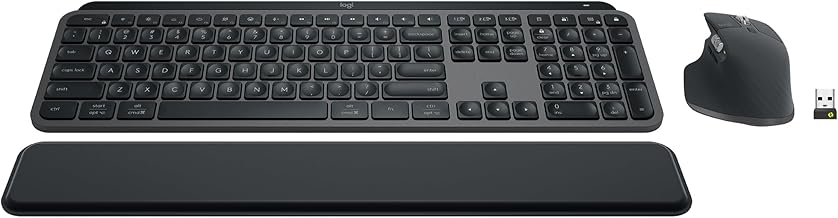
The Logitech MX Keys S Combo bundles the full-size MX Keys S wireless keyboard, the MX Master 3S mouse and a palm rest. It's built for all-day office typing across several devices: it pairs with up to three computers or tablets and switches between them with a key press.
Verdict: A strong pick if you write and email all day, move between a work laptop and a personal machine, and want a matched keyboard and mouse that need no tuning. If you want mechanical switch feel, adjustable actuation or firmware-level remapping, look at a mechanical keyboard instead (see alternatives below).
Key Specs
| Spec | Logitech MX Keys S Combo |
|---|---|
| Keyboard | Full-size, low-profile scissor keys (laptop-style) with spherically dished keycaps |
| Connectivity | Bluetooth Low Energy or Logi Bolt USB receiver; pairs up to 3 devices |
| Backlighting | Proximity-sensing, auto-adjusting |
| Included mouse | MX Master 3S — 8000 DPI, 7 buttons, MagSpeed electromagnetic scroll wheel |
| Also included | Palm rest |
| Build | Aluminium top plate |
| Software | Logi Options+ (Smart Actions, key remapping) |
Specs per Logitech's official MX Keys S Combo page.
What Stands Out
Three-device switching. Pair a work laptop, a personal desktop and a tablet, then move between them with the Easy-Switch keys — over Bluetooth or the Logi Bolt receiver.
Keys designed for long sessions. The low-profile keys are dished to fit fingertips, which Logitech says reduces finger travel over a long typing day. The backlight turns on as your hands approach and adjusts to room light.
A matched mouse in the box. The MX Master 3S adds an 8000 DPI sensor, quiet clicks and the MagSpeed scroll wheel, which Logitech rates at up to 1,000 lines per second — useful for long documents and spreadsheets.
Customisation without complexity. Logi Options+ handles key remapping and Smart Actions (multi-step shortcuts), but nothing needs configuring to start typing.
Trade-offs and Who Should Skip It
- Not mechanical. Laptop-style scissor keys are quiet and low-travel; if you want tactile or clicky switches, this isn't it.
- Vendor software for remapping. Customisation goes through Logi Options+ rather than open firmware (QMK/VIA) that some enthusiasts prefer.
- Full-size footprint. It includes a number pad, so it takes more desk width than a compact 75% layout.
Alternatives
- Keychron Q6 Pro — a full-size wireless mechanical keyboard with QMK/VIA remapping; see our MX Keys S Combo vs Keychron Q6 Pro comparison.
- Keychron K2 HE — a compact 75% keyboard with magnetic Hall-effect switches and adjustable actuation (0.2–3.8mm per key), per Keychron's product page. Better for switch-feel enthusiasts and gamers; no mouse included.
- Want just the mouse? See our MX Master 3S vs Razer Pro Click Mini comparison.
The Workflow Guide publishes independent research and comparisons. We do not test products in-house; this page is based on the manufacturers' published specifications (linked above).
Connection, audio, light, camera, desk and power, in the order that matters. Free 2-page PDF, no spam.
No spam. Unsubscribe anytime.
Logitech MX Keys S Combo
Our pick, based on published specs and owner reviews — not hands-on testing.
Check Price on Amazon →Founder of The Workflow Guide — an IT professional who researches home-office gear and productivity software from specs, documentation and published reviews. Full bio →