Logitech MX Master 3S Wireless Mouse: Full Rundown (2026)
This is an affiliate link — we may earn a commission at no extra cost to you.
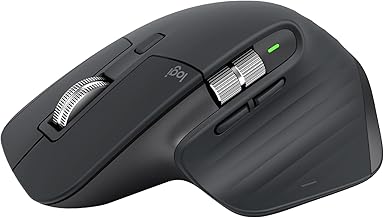
The MX Master 3S is Logitech's flagship productivity mouse: a large, sculpted, right-handed mouse with an electromagnetic MagSpeed scroll wheel, a thumb wheel for horizontal scrolling, and Logitech's Options+ software for per-app button mapping [1][2]. Compared with the MX Master 3 it replaced, the changes are an 8,000 DPI sensor that tracks on glass and clicks Logitech says are 90% quieter [1][2]. Logitech lists it at $99.99 [2]. This page is based on manufacturer specifications and published professional reviews; we don't test mice in-house.
Quick verdict
Laptop Mag called the 3S Logitech's "victory lap" and said the brand "sits atop the throne of productivity mice" — praising the ergonomic shape, the scroll wheel, and the software [1]. The same review is clear about the limits: it's right-handed only, and the upgrade over the cheaper MX Master 3 is small [1]. Buy it if you spend all day in documents, spreadsheets, and browsers and have a medium-to-large right hand.
Full specs
| Spec | Logitech MX Master 3S |
|---|---|
| List price | $99.99 on Logitech.com [2] |
| Sensor | 8,000 DPI, tracks on glass (4mm minimum thickness) [2] |
| Clicks | Quiet Clicks — 90% less click noise than MX Master 3 [2] |
| Scroll | MagSpeed electromagnetic wheel + thumb wheel [1][2] |
| Size / weight | 4.9 × 3.3 × 2.0 in, about 5 oz [1] |
| Handedness | Right-handed only [1] |
| Charging | USB-C, rechargeable lithium-ion [1] |
| Battery | Up to 70 days per Logitech's claim [1] |
| Connection | Bluetooth or Logi Bolt USB receiver [2] |
| Software | Logi Options+ (button mapping, app-specific profiles, Flow) [1][2] |
What stands out
- The scroll wheel. Laptop Mag says the electromagnetic wheel "still stands head and shoulders above every other mouse," letting you scroll "insanely fast" through long pages and documents, then switch back to precise steps [1].
- Comfort over long days. The reviewer found "the same sublime levels of comfort and usability" across eight-hour workdays, with the button layout sitting where the hand naturally falls [1].
- Quiet clicks. Logitech claims 90% less click noise than the MX Master 3 [2]; Laptop Mag found the clicks far quieter while keeping their tactile feel [1]. Useful in shared spaces and on calls.
- Works on glass. The 8,000 DPI sensor tracks on glass desks (4mm minimum thickness) [2], and the higher DPI helps on small desks or high-resolution screens [1].
- Software that earns its keep. Options+ adds individual button customization, tracking speed, and app-specific profiles [1], plus Flow for moving the cursor and files between computers [2].
What to know before buying
- Right-handed only. There's no left-handed version [1].
- It's big. At 4.9 × 3.3 × 2.0 inches and around 5 ounces [1], it suits a palm grip and medium-to-large hands. For travel or small hands, the MX Anywhere 3S is the compact sibling.
- Small upgrade over the MX Master 3. Laptop Mag listed "virtually identical" to its predecessor as a con and questioned whether the upgrades are worth it if you can find a cheaper MX Master 3 [1].
- Nowhere to store the receiver. There's no slot for the USB dongle on the mouse [1].
- Battery figure is Logitech's. The 70-day claim comes from Logitech; Laptop Mag's early use was on track for it but couldn't confirm the full figure [1].
Who it's for
- Good fit: right-handed knowledge workers who scroll through long documents, spreadsheets, and code all day; people who switch between two computers.
- Maybe: owners of an MX Master 3 — the 3S is quieter and more precise, but it's an incremental change [1].
- Skip it: left-handed users, small hands, or anyone who mainly uses a trackpad.
FAQ
What's the difference between the MX Master 3 and 3S? The 3S doubles the sensor to 8,000 DPI and has clicks Logitech says are 90% quieter; the shape and features are otherwise the same [1][2].
Does the MX Master 3S work on glass? Yes, on glass at least 4mm thick [2].
How long does the battery last? Logitech claims up to 70 days; it charges over USB-C [1].
Is the MX Master 3S available for left-handed users? No — it's right-handed only [1].
Bottom line
The MX Master 3S is still the reference productivity mouse: the best-regarded scroll wheel, a comfortable shape for long days, quiet clicks, and genuinely useful software. Its limits are equally clear — right hand only, large, and only a modest step up from the MX Master 3.
Check the current price on the Logitech MX Master 3S →
See also
Sources
- 4,000→8,000 DPI, 90% quieter switches, $99 price, identical design, 4.9 × 3.3 × 2.0 in and 5 oz, right-handed only, no dongle storage, comfort over 8-hour days, scroll wheel, Options+ features, USB-C charging, 70-day battery claim, "virtually identical" con, verdict — Laptop Mag, Logitech MX Master 3S review
- $99.99 list price, Quiet Clicks with 90% less click noise vs MX Master 3, 8,000 DPI track-on-glass sensor (4mm minimum glass thickness), MagSpeed wheel, Bluetooth / Logi Bolt, Logi Options+ and Flow — Logitech, MX Master 3S product page
The Workflow Guide publishes independent research on tech tools and gear. We do not test mice in-house; this page is based on manufacturer specifications and published professional reviews.
Connection, audio, light, camera, desk and power, in the order that matters. Free 2-page PDF, no spam.
No spam. Unsubscribe anytime.
Logitech MX Master 3S Wireless Mouse
Our pick, based on published specs and owner reviews — not hands-on testing.
Check Price on Amazon →Founder of The Workflow Guide — an IT professional who researches home-office gear and productivity software from specs, documentation and published reviews. Full bio →