Complete Streaming Setup Guide (2026)
This is an affiliate link — we may earn a commission at no extra cost to you.
A solid streaming setup comes down to four categories: camera, mic, lighting, and control. Here's where to spend and what to buy, based on published specs and manufacturer data. We don't test streaming gear in-house.
The Right Order of Upgrades
Most beginners buy gear in the wrong order — a decent camera first, recorded through a laptop microphone. Bad audio kills a video instantly; bad video with great audio is still watchable. The priority order that actually matters:
- Microphone — audio is most of the viewer experience
- Lighting — dramatically improves how you look on camera, cheaper than it sounds
- Webcam/camera — only upgrade once audio and lighting are sorted
- Everything else — green screen, capture card, Stream Deck — add as you grow
Camera
Value: Logitech MX Brio — reliable 4K webcam with strong autofocus for calls and casual streaming.
Image quality: Razer Kiyo Pro Ultra — the largest sensor ever put in a consumer webcam, built for low-light performance.
AI tracking: Insta360 Link 2 — motorized gimbal that physically follows you around a room.
Microphone
Budget: RODE PodMic USB — dynamic mic that forgives an untreated room.
Flagship: Shure MV7+ — USB/XLR hybrid with auto level mode, upgradeable to a full audio interface setup later.
Boom arm: Rode PSA1+ — positions the mic correctly and isolates desk vibration, worth adding once you've picked a mic.
Lighting
Budget: Micomlan Desk Lamp with Clamp — basic task lighting that doesn't take up desk space.
Streaming-focused: Elgato Key Light — app-controlled brightness and color temperature, the standard pick for on-camera lighting. Position it roughly 45° to your face — not directly in front, not directly behind the camera.
Control
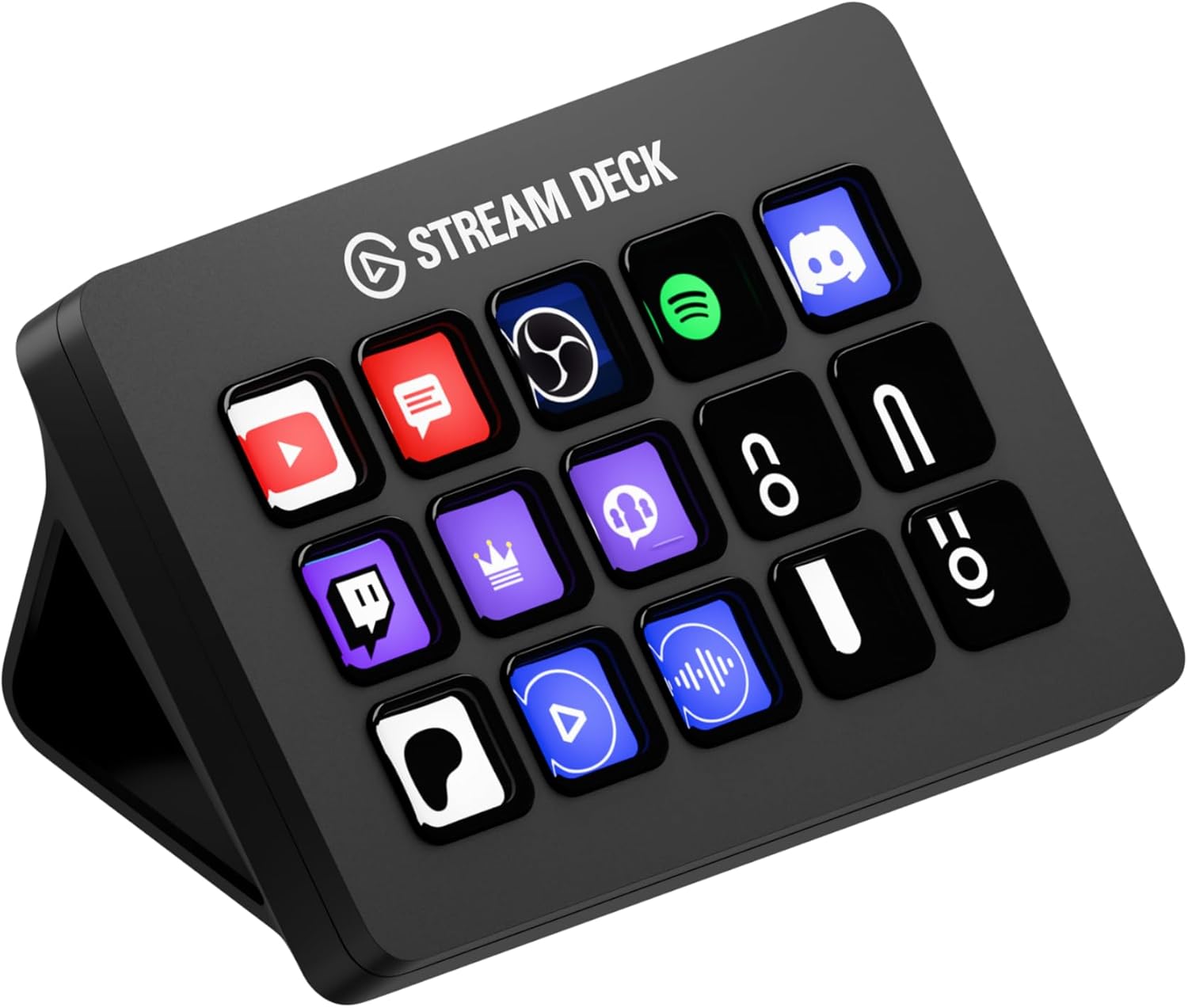
Elgato Stream Deck MK.2 — 15 programmable keys for scene switches, mute toggles, and app shortcuts, replacing keyboard-shortcut hunting mid-stream.
Software Setup: Free Tools to Start
Gear is half the setup — the other half is free software:
- OBS Studio (free) — the industry-standard streaming and recording software. Handles YouTube, Twitch, and multi-source recording with scene switching and overlays. The right choice for most beginners.
- DaVinci Resolve (free) — professional video editing; the free tier is genuinely complete for YouTube-length work.
- Canva (free) — thumbnails, channel art, and overlays; the free tier covers everything a beginner needs.
- Descript (free tier) — AI-assisted editing that removes filler words, auto-transcribes, and lets you edit video like a text document.
Recommended OBS starting settings: 1080p/30fps for YouTube, 1080p/60fps for gaming, AAC audio at 160kbps.
Two Starting Budgets
Starter setup: RODE PodMic USB + Elgato Key Light + a boom arm. Skip a standalone webcam if your laptop's built-in camera is adequate — audio and lighting matter more at this stage.
Mid-level setup: Shure MV7+ + Elgato Key Light + Logitech MX Brio + Rode PSA1+ boom arm. This is enough gear to not need another upgrade for years.
Bottom line
Start with the mic and lighting — they matter most for how you actually come across on stream, and both are cheaper than a camera upgrade. Add the camera next, and a Stream Deck once you're managing multiple scenes or apps during a session. OBS Studio (free) is the right software to start with regardless of budget.
Browse all streaming gear at The Workflow Guide →
FAQ
What do I need to start streaming or making YouTube videos in 2026? The minimum is a decent microphone, basic lighting, and free recording/editing software (OBS Studio or DaVinci Resolve). If your laptop's built-in camera is adequate, you don't need a standalone webcam to start — prioritize audio and lighting first.
Is a webcam good enough, or do I need a dedicated camera? A good webcam is genuinely sufficient for most talking-head, tutorial, and gaming content in 2026. Dedicated cameras produce better image quality, but the gap has narrowed. Start with a webcam and upgrade later if your content specifically demands it.
Do I need a green screen to start? Not to start. A clean, well-lit background behind you works fine for most content. Green screens add setup complexity (even lighting, no creases, hair can be tricky) without a clear benefit unless you specifically need virtual backgrounds.
How do I improve audio without buying new gear? Three free changes help most: record in a smaller room with soft furnishings (carpet, curtains, a couch absorb echo), move your existing mic closer to your mouth, and use a free noise-removal filter in OBS or Audacity to strip background hum.
The Workflow Guide publishes independent research on tech tools and gear for remote workers, creators, and small teams. We do not test streaming gear in-house; this guide is based on manufacturer specifications and published spec-sheet data.
Connection, audio, light, camera, desk and power, in the order that matters. Free 2-page PDF, no spam.
No spam. Unsubscribe anytime.
Founder of The Workflow Guide — an IT professional who researches home-office gear and productivity software from specs, documentation and published reviews. Full bio →