Dell UltraSharp U2725QE: 27" 4K Thunderbolt Hub Monitor — Specs, Pros & Cons (2026)
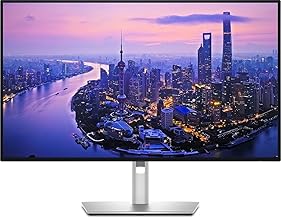
By The Workflow Guide
The Quick Answer
The Dell UltraSharp U2725QE is a 27-inch 4K monitor built to be the centre of a laptop desk setup: one Thunderbolt 4 cable carries video, data and up to 140W of charging, and a built-in KVM switch lets one keyboard and mouse control two computers. It adds a 120Hz refresh rate and an IPS Black panel rated at 3000:1 contrast — well beyond a typical 60Hz office 4K screen.
Verdict: Worth it if you dock a Thunderbolt or USB-C laptop every day and want a single-cable desk, or you'll use the higher refresh rate and HDR. If you mainly need a sharp 4K screen for documents and browsing, a simpler 4K monitor does that for meaningfully less money (see alternatives below).
Key Specs
| Spec | Dell UltraSharp U2725QE |
|---|---|
| Panel | 27" 3840×2160 (4K UHD), IPS Black |
| Refresh rate | Up to 120Hz, 48–120Hz VRR |
| Response time | 5ms |
| Brightness | 450 cd/m², up to 600 nits with DisplayHDR 600 |
| Colour | 99% DCI-P3 |
| Contrast | 3000:1 |
| Connectivity | Dual Thunderbolt 4 (140W power delivery), DisplayPort 1.4, HDMI 2.1, USB-A, 2.5GbE Ethernet |
| Built-in KVM | Yes |
| Stand | Height, tilt, swivel, pivot |
| Warranty | 3-year Dell Advanced Exchange |
Specs per Dell's official product page and RTINGS' Dell U2725QE review.
What Stands Out
Single-cable docking. The Thunderbolt 4 hub means a laptop can get 4K video, USB data, wired 2.5GbE networking and up to 140W of charging over one cable — enough for high-wattage 16-inch laptops, not just ultrabooks. For anyone who docks and undocks daily, this replaces a separate dock.
Built-in KVM. Connect two computers (for example a work laptop and a personal desktop) and switch which one the attached keyboard and mouse control, without a separate switch box.
120Hz on a work monitor. Most 4K office monitors run at 60Hz. Doubling the refresh rate makes scrolling and window movement smoother, and the 48–120Hz variable refresh range suits light gaming too.
Contrast and HDR. The IPS Black panel's rated 3000:1 contrast is roughly three times a standard IPS panel's, and DisplayHDR 600 certification means HDR content can get meaningfully brighter than on basic "HDR10-compatible" screens.
Trade-offs and Who Should Skip It
- Price. It sits well above basic 4K monitors. If you don't need the hub, the KVM or 120Hz, you're paying for features you won't use.
- No extra sharpness. Resolution is the same 3840×2160 as far cheaper 27" 4K screens — the premium is for connectivity, speed and contrast, not pixels.
- Your laptop matters. The single-cable and 140W charging benefits depend on your laptop having Thunderbolt or a capable USB-C port.
Alternatives
- Dell P2725QE — Dell's 27" 4K business monitor with a USB-C hub (up to 90W charging, Ethernet, 100Hz). A cheaper single-cable option if you don't need Thunderbolt, 140W or the KVM.
- LG UltraFine 27US500-W — a basic 60Hz 27" 4K IPS screen (tilt-only stand, no hub) at a much lower price; see our LG UltraFine 27US500-W vs Dell P2725QE comparison.
- Browse all picks in our best 4K / USB-C monitor guide.
The Workflow Guide publishes independent research and comparisons. We do not test products in-house; this page is based on the manufacturer's published specifications and third-party reviews (linked above).
Connection, audio, light, camera, desk and power, in the order that matters. Free 2-page PDF, no spam.
No spam. Unsubscribe anytime.
Dell UltraSharp U2725QE 27" 4K Monitor
Our pick, based on published specs and owner reviews — not hands-on testing.
Check Price on Amazon →Founder of The Workflow Guide — an IT professional who researches home-office gear and productivity software from specs, documentation and published reviews. Full bio →